

جستجو پیشرفته در ریسایکلر ویو (RecyclerView)

پروژه اتصال به برد arduino با استفاده از پورت سریال در سی شارپ
7 بهمن 1396
فاصله space بین کلمات در تکست ویو (TextView)
4 دی 1397
جستجو پیشرفته در ریسایکلر ویو (RecyclerView) ، در این آموزش از وب سایت تجاری اپ میخوایم جستجو پیشرفته در ریسایکلر ویو (جستجوی زنده یا آنی) با استفاده از کتایخانه هایی مثل Retrofit ، Rxbinding و Gson کار کنیم.
جستجو پیشرفته در ریسایکلر ویو RecyclerView
افزودن کتابخانه های مورد نیاز به گریدل (gradle)
خب اولین کاری که باید بکنیم مسلما اینه که کتابخانه های مورد نیاز رو به گریدل (gradle) پروژه اضافه کنیم ،که ما برای این پروژه از این کتابخانه ها استفاده می کنیم:
// views
implementation 'com.android.support:recyclerview-v7:27.1.1'
implementation 'com.android.support:cardview-v7:27.1.1'

//retrofit
implementation 'com.squareup.retrofit2:retrofit:2.1.0'
implementation 'com.squareup.retrofit2:converter-gson:2.0.2'

//rxjava
implementation 'com.jakewharton.rxbinding:rxbinding:0.4.0'
به علاوه این خط کد رو هم به بخش defaultConfig گریدل برای اجرای بدون مشکل وکتور ها اضافه میکنیم
defaultConfig {

....

//https://stackoverflow.com/a/35795933 ,for show vector in apis bellow 5
vectorDrawables.useSupportLibrary = true
نوشتن کدهای کاتلین
خب طبیعتا اقدام بعدی نوشتن کدهای کاتلینِ.اولین کلاسی که باید بنویسیم کلاس ServiceGenerator هست که بیس اصلی ارتباط ما با سرور رو فراهم میکنه و در ادامه برای هر درخواست فقط کافیه که صداش بزنیم و درخواست رو ارسال کنیم:
package dn.marjan.realtimesearch

import com.google.gson.GsonBuilder
import okhttp3.OkHttpClient
import retrofit2.converter.gson.GsonConverterFactory
import java.util.concurrent.TimeUnit

/**
* Created by Marjan.Dnejad
* on 4/17/2018.
*/
class ServiceGenerator
{

private val URL: String = "http://10.0.3.2/"
private var apiService: TaskService?= null

init {

val okClient = OkHttpClient.Builder()
.connectTimeout(10, TimeUnit.SECONDS) // for handle timeout exception
.readTimeout(10, TimeUnit.SECONDS)
.build()

val gson = GsonBuilder()
.setDateFormat("yyyy-MM-dd'T'HH:mm:ssZ")
.setLenient()
.create()

val restAdapter = retrofit2.Retrofit.Builder()
.baseUrl(URL)
.addConverterFactory(GsonConverterFactory.create(gson))
.client(okClient)
.build()

apiService = restAdapter.create(TaskService::class.java)
}

fun getService() : TaskService = apiService!!
}
کلاس بعدی که باید ایجاد شه و باز هم مرتبط هست به درخواست های ارسالی به سرور.کلاس TaskService که فقط مشخصه های درخواست ارسالی به سرور رو مشخص میکنه مثل آدرس endpoint یو ار ال ها و Get یا Post بودن آنها و … (برای اطلاعات بیشتر در باره درخواست های retrofit به سایت مرجع رتروفیت برید و مطالعه کنید )
package dn.marjan.realtimesearch

import retrofit2.Call
import okhttp3.ResponseBody
import retrofit2.http.GET

/**
* Created by Marjan.Dnejad
* on 4/17/2018.
*/
interface TaskService {

@GET("getData.php")
fun getStudents(): Call<ResponseBody>
}
رتروفیت کارها میدونن که دیگه تو رتروفیت خبری از JsonObject و JsonArray نیست !!
اینجا فقط کافیه از annotation یا حاشیه نویس @SerializedName(“”) استفاده کنیم و هر فیلدی که بصورت جیسون از سرور میاد رو به یک متغیر اختصاص بدیم و فقط کافیه جیسون رو با کتابخانه Gson تبدیل کنیم به یک شی یا آرایه تروتمیز و ازش استفاده کنیم !!
رتروفیت = ته خوشبختی
package dn.marjan.realtimesearch

import android.app.Activity
import android.content.Context
import android.support.v7.app.AlertDialog
import com.google.gson.Gson
import com.google.gson.annotations.Expose
import com.google.gson.annotations.SerializedName
import com.google.gson.reflect.TypeToken
import kotlinx.android.synthetic.main.view_dialog_item.view.*

class Students {

@SerializedName("ID")
@Expose
var iD: String? = null
@SerializedName("Name")
@Expose
var name: String? = null
@SerializedName("Family")
@Expose
var family: String? = null
@SerializedName("Age")
@Expose
var age: String? = null
@SerializedName("Average")
@Expose
var average: String? = null
@SerializedName("City")
@Expose
var city: String? = null

companion object {

//get student list from json data came from server
fun getStudentsFromJson(value: String): List<Students> {
val gson = Gson()
val listType = object : TypeToken<List<Students>>() {}.type
val data = gson.fromJson<List<Students>>(value, listType)

return data
}

//search a char in student list compair with student name
fun searchStudent(context: Context, text: String, stuList: ArrayList<Students>): ArrayList<Students> {

val searchRes: ArrayList<Students> = ArrayList()
for (i in 0 until stuList.size) {
stuList[i].name.let {
if (stuList[i].name!!.contains(text))
searchRes.add(stuList[i])
}
}

return searchRes
}

//when click on a student item to show dialog of student info
fun studentItemClick(stud: Students, context: Context, activity: Activity) {
val builder = AlertDialog.Builder(context)

val view = activity.layoutInflater.inflate(R.layout.view_dialog_item, null)
builder.setView(view)

view.txv_name.text = stud.name
view.txv_family.text = stud.family
view.txv_age.text = stud.age
view.txv_avr.text = stud.average
view.txv_city.text = stud.city

builder.create().show()
}
}

}
من یک سری متد های مخصوص کلاس student رو گذاشتم داخل کلاس خودش و از companion object استفاده کردم که در جاوا کارهمون static رو انجام میده ، اینکه هرمتد چکاری رو انجام میده بصورت شفاف کامنت شده.
لایه ای که در دیالوگ نمایش داده میشه هم بدین صورت هست:
<?xml version="1.0" encoding="utf-8"?>
<android.support.v7.widget.CardView xmlns:android="http://schemas.android.com/apk/res/android"
xmlns:app="http://schemas.android.com/apk/res-auto"
android:id="@+id/card_stud"
xmlns:tools="http://schemas.android.com/tools"
android:layout_width="match_parent"
android:layout_height="wrap_content">

<android.support.constraint.ConstraintLayout
android:layout_width="match_parent"
android:layout_height="match_parent">

<TextView
android:id="@+id/textView2"
android:layout_width="wrap_content"
android:layout_height="wrap_content"
android:layout_marginTop="16dp"
android:layout_marginEnd="16dp"
android:layout_marginRight="16dp"
android:text="@string/name"
app:layout_constraintEnd_toEndOf="parent"
app:layout_constraintTop_toTopOf="parent" />

<TextView
android:id="@+id/txv_name"
style="@style/MyTextViews"
android:layout_width="0dp"
android:layout_height="wrap_content"
android:layout_marginStart="8dp"
android:layout_marginLeft="8dp"
android:layout_marginEnd="8dp"
android:layout_marginRight="8dp"
android:text="TextView"
app:layout_constraintBottom_toBottomOf="@+id/textView2"
app:layout_constraintEnd_toStartOf="@+id/textView2"
app:layout_constraintStart_toStartOf="parent"
app:layout_constraintTop_toTopOf="@+id/textView2" />

<TextView
android:id="@+id/txv_family"
style="@style/MyTextViews"
android:layout_width="0dp"
android:layout_height="wrap_content"
android:layout_marginStart="8dp"
android:layout_marginLeft="8dp"
android:layout_marginEnd="8dp"
android:layout_marginRight="8dp"
android:text="TextView"
app:layout_constraintBottom_toBottomOf="@+id/textView6"
app:layout_constraintEnd_toStartOf="@+id/textView6"
app:layout_constraintStart_toStartOf="parent"
app:layout_constraintTop_toTopOf="@+id/textView6" />

<TextView
android:id="@+id/textView6"
android:layout_width="wrap_content"
android:layout_height="wrap_content"
android:layout_marginTop="16dp"
android:layout_marginEnd="16dp"
android:layout_marginRight="16dp"
android:text="@string/family"
app:layout_constraintEnd_toEndOf="parent"
app:layout_constraintTop_toBottomOf="@+id/textView2" />

<TextView
android:id="@+id/textView7"
android:layout_width="wrap_content"
android:layout_height="wrap_content"
android:layout_marginTop="16dp"
android:layout_marginEnd="16dp"
android:layout_marginRight="16dp"
android:text="@string/age"
app:layout_constraintEnd_toEndOf="parent"
app:layout_constraintTop_toBottomOf="@+id/textView6" />

<TextView
android:id="@+id/txv_age"
style="@style/MyTextViews"
android:layout_width="0dp"
android:layout_height="wrap_content"
android:layout_marginStart="8dp"
android:layout_marginLeft="8dp"
android:layout_marginEnd="8dp"
android:layout_marginRight="8dp"
android:text="TextView"
app:layout_constraintBottom_toBottomOf="@+id/textView7"
app:layout_constraintEnd_toStartOf="@+id/textView7"
app:layout_constraintStart_toStartOf="parent"
app:layout_constraintTop_toTopOf="@+id/textView7" />

<TextView
android:id="@+id/textView9"
android:layout_width="wrap_content"
android:layout_height="wrap_content"
android:layout_marginTop="16dp"
android:layout_marginEnd="16dp"
android:layout_marginRight="16dp"
android:text="@string/average"
app:layout_constraintEnd_toEndOf="parent"
app:layout_constraintTop_toBottomOf="@+id/textView7" />

<TextView
android:id="@+id/txv_avr"
style="@style/MyTextViews"
android:layout_width="0dp"
android:layout_height="wrap_content"
android:layout_marginStart="8dp"
android:layout_marginLeft="8dp"
android:layout_marginEnd="8dp"
android:layout_marginRight="8dp"
android:text="TextView"
android:textColor="@android:color/holo_red_dark"
app:layout_constraintBottom_toBottomOf="@+id/textView9"
app:layout_constraintEnd_toStartOf="@+id/textView9"
app:layout_constraintStart_toStartOf="parent"
app:layout_constraintTop_toTopOf="@+id/textView9" />

<TextView
android:id="@+id/textView11"
android:layout_width="wrap_content"
android:layout_height="wrap_content"
android:layout_marginTop="16dp"
android:layout_marginEnd="16dp"
android:layout_marginRight="16dp"
android:layout_marginBottom="16dp"
android:text="@string/city"
app:layout_constraintBottom_toBottomOf="parent"
app:layout_constraintEnd_toEndOf="parent"
app:layout_constraintTop_toBottomOf="@+id/textView9"
app:layout_constraintVertical_bias="0.0" />

<TextView
android:id="@+id/txv_city"
style="@style/MyTextViews"
android:layout_width="0dp"
android:layout_height="wrap_content"
android:layout_marginStart="8dp"
android:layout_marginLeft="8dp"
android:layout_marginEnd="8dp"
android:layout_marginRight="8dp"
android:text="TextView"
android:textColor="@android:color/holo_green_light"
app:layout_constraintBottom_toBottomOf="@+id/textView11"
app:layout_constraintEnd_toStartOf="@+id/textView11"
app:layout_constraintStart_toStartOf="parent"
app:layout_constraintTop_toTopOf="@+id/textView11" />
</android.support.constraint.ConstraintLayout>
</android.support.v7.widget.CardView>
کلاس آداپتر لیست
حالا کلاس آداپتر لیست میمونه که که قطعا نیاز به یک لایه برای اتچ شدن در لیست داره
<?xml version="1.0" encoding="utf-8"?>
<android.support.v7.widget.CardView xmlns:android="http://schemas.android.com/apk/res/android"
xmlns:app="http://schemas.android.com/apk/res-auto"
xmlns:tools="http://schemas.android.com/tools"
android:id="@+id/card_stud"
android:layout_width="match_parent"
android:layout_height="wrap_content"
android:layout_margin="8dp">

<android.support.constraint.ConstraintLayout
android:layout_width="match_parent"
android:layout_height="match_parent">

<TextView
android:id="@+id/textView2"
android:layout_width="wrap_content"
android:layout_height="wrap_content"
android:layout_marginTop="16dp"
android:layout_marginEnd="16dp"
android:layout_marginRight="16dp"
android:text="@string/name"
app:layout_constraintEnd_toEndOf="parent"
app:layout_constraintTop_toTopOf="parent" />

<TextView
android:id="@+id/txv_name"
style="@style/MyTextViews"
android:layout_width="0dp"
android:layout_height="wrap_content"
android:layout_marginStart="8dp"
android:layout_marginLeft="8dp"
android:layout_marginEnd="8dp"
android:layout_marginRight="8dp"
android:text="TextView"
app:layout_constraintBottom_toBottomOf="@+id/textView2"
app:layout_constraintEnd_toStartOf="@+id/textView2"
app:layout_constraintStart_toStartOf="parent"
app:layout_constraintTop_toTopOf="@+id/textView2" />

<TextView
android:id="@+id/txv_family"
style="@style/MyTextViews"
android:layout_width="0dp"
android:layout_height="wrap_content"
android:layout_marginStart="8dp"
android:layout_marginLeft="8dp"
android:layout_marginEnd="8dp"
android:layout_marginRight="8dp"
android:text="TextView"
app:layout_constraintBottom_toBottomOf="@+id/textView6"
app:layout_constraintEnd_toStartOf="@+id/textView6"
app:layout_constraintStart_toStartOf="parent"
app:layout_constraintTop_toTopOf="@+id/textView6" />

<TextView
android:id="@+id/textView6"
android:layout_width="wrap_content"
android:layout_height="wrap_content"
android:layout_marginTop="16dp"
android:layout_marginEnd="16dp"
android:layout_marginRight="16dp"
android:text="@string/family"
app:layout_constraintEnd_toEndOf="parent"
app:layout_constraintTop_toBottomOf="@+id/textView2" />

<TextView
android:id="@+id/textView9"
android:layout_width="wrap_content"
android:layout_height="wrap_content"
android:layout_marginTop="16dp"
android:layout_marginEnd="16dp"
android:layout_marginRight="16dp"
android:layout_marginBottom="16dp"
android:text="@string/average"
app:layout_constraintBottom_toBottomOf="parent"
app:layout_constraintEnd_toEndOf="parent"
app:layout_constraintTop_toBottomOf="@+id/textView6" />

<TextView
android:id="@+id/txv_avr"
style="@style/MyTextViews"
android:layout_width="0dp"
android:layout_height="wrap_content"
android:layout_marginStart="8dp"
android:layout_marginLeft="8dp"
android:layout_marginEnd="8dp"
android:layout_marginRight="8dp"
android:text="TextView"
android:textColor="@android:color/holo_red_dark"
app:layout_constraintBottom_toBottomOf="@+id/textView9"
app:layout_constraintEnd_toStartOf="@+id/textView9"
app:layout_constraintStart_toStartOf="parent"
app:layout_constraintTop_toTopOf="@+id/textView9" />

</android.support.constraint.ConstraintLayout>
</android.support.v7.widget.CardView>
و در نهایت خود کلاس اداپتر
package dn.marjan.realtimesearch.adapter

import android.content.Context
import android.support.annotation.Nullable
import android.support.v7.widget.RecyclerView
import android.view.LayoutInflater
import android.view.View
import android.view.ViewGroup
import dn.marjan.realtimesearch.R
import dn.marjan.realtimesearch.Students
import kotlinx.android.synthetic.main.view_list_item.view.*

/**
* Created by Marjan.Dnejad
* on 4/24/2018.
*/
class StudentsAdapter( val interactor: StudentsAdapterInteractor)
: RecyclerView.Adapter<StudentsAdapter.StudentsViewHolder>() {

private var mList: ArrayList<Students> =ArrayList()

fun setItems(@Nullable mList: ArrayList<Students>){
this.mList=mList
notifyDataSetChanged()
}

override fun onCreateViewHolder(parent: ViewGroup, viewType: Int): StudentsViewHolder {
val view = LayoutInflater.from(parent.context).inflate(R.layout.view_list_item, parent, false)
return StudentsViewHolder(view)
}

override fun getItemCount(): Int = mList.size

override fun onBindViewHolder(holder: StudentsViewHolder, position: Int) {
val student=mList[position]

//bind data to item
holder.bindItems(student)

//when click on an item
holder.itemView.card_stud.setOnClickListener {
interactor.setStudentsItemClick(student)
}
}

class StudentsViewHolder(itemView: View) : RecyclerView.ViewHolder(itemView) {
fun bindItems(stud: Students){
itemView.txv_name.text = stud.name
itemView.txv_avr.text = stud.average
itemView.txv_family.text = stud.family

}
}

}

interface StudentsAdapterInteractor{
fun setStudentsItemClick(student: Students)

}
فایل xml لایه اصلی
خب حالا دیگه چیزی نمونده جز لایه اصلی که فایل xml ش بدین صورت هست
<?xml version="1.0" encoding="utf-8"?>
<android.support.constraint.ConstraintLayout xmlns:android="http://schemas.android.com/apk/res/android"
xmlns:app="http://schemas.android.com/apk/res-auto"
xmlns:tools="http://schemas.android.com/tools"
android:layout_width="match_parent"
android:layout_height="match_parent"
android:id="@+id/dynamic_view"
tools:context=".MainActivity">

<android.support.v7.widget.Toolbar
android:id="@+id/toolbar"
android:layout_width="match_parent"
android:layout_height="wrap_content"
android:background="?attr/colorPrimary"
android:minHeight="?attr/actionBarSize"
android:theme="?attr/actionBarTheme"
app:contentInsetLeft="0dp"
app:contentInsetStart="0dp"
app:layout_constraintEnd_toEndOf="parent"
app:layout_constraintStart_toStartOf="parent"
app:layout_constraintTop_toTopOf="parent">

<android.support.constraint.ConstraintLayout
android:layout_width="match_parent"
android:layout_height="wrap_content">

<TextView
android:id="@+id/textView"
android:layout_width="wrap_content"
android:layout_height="wrap_content"
android:layout_marginStart="8dp"
android:layout_marginLeft="8dp"
android:layout_marginTop="16dp"
android:layout_marginEnd="8dp"
android:layout_marginRight="8dp"
android:text="@string/toolbar_title"
android:textColor="?attr/colorBackgroundFloating"
app:layout_constraintEnd_toEndOf="parent"
app:layout_constraintHorizontal_bias="0.92"
app:layout_constraintStart_toEndOf="@+id/imageView"
app:layout_constraintTop_toTopOf="parent" />

<ImageView
android:id="@+id/imageView"
android:layout_width="50dp"
android:layout_height="50dp"
android:padding="8dp"
android:scaleType="fitCenter"
app:layout_constraintBottom_toBottomOf="parent"
app:layout_constraintStart_toStartOf="parent"
app:layout_constraintTop_toTopOf="parent"
app:layout_constraintVertical_bias="0.0"
app:srcCompat="@drawable/ic_keyboard_arrow_left_black_24dp" />

<EditText
android:id="@+id/edt_search"
android:layout_width="0dp"
android:layout_height="wrap_content"
android:layout_marginStart="8dp"
android:layout_marginLeft="8dp"
android:layout_marginTop="8dp"
android:layout_marginEnd="8dp"
android:layout_marginRight="8dp"
android:layout_marginBottom="8dp"
android:background="@android:color/background_light"
android:ems="10"
android:inputType="textPersonName"
android:paddingTop="3dp"
android:paddingRight="35dp"
android:paddingBottom="3dp"
app:layout_constraintBottom_toBottomOf="parent"
app:layout_constraintEnd_toEndOf="parent"
app:layout_constraintStart_toStartOf="parent"
app:layout_constraintTop_toBottomOf="@+id/imageView" />

<ImageView
android:id="@+id/imageView2"
android:layout_width="30dp"
android:layout_height="30dp"
android:layout_marginEnd="8dp"
android:layout_marginRight="8dp"
app:layout_constraintBottom_toBottomOf="@+id/edt_search"
app:layout_constraintEnd_toEndOf="@+id/edt_search"
app:layout_constraintTop_toTopOf="@+id/edt_search"
app:srcCompat="@drawable/ic_search_black_24dp" />

</android.support.constraint.ConstraintLayout>
</android.support.v7.widget.Toolbar>

<android.support.v7.widget.RecyclerView
android:id="@+id/rcv_list"
android:layout_width="0dp"
android:layout_height="0dp"
app:layout_constraintBottom_toBottomOf="parent"
app:layout_constraintEnd_toEndOf="parent"
app:layout_constraintStart_toStartOf="parent"
app:layout_constraintTop_toBottomOf="@+id/toolbar" />
</android.support.constraint.ConstraintLayout>
فایل اکتیویتی لانچر یا MainActivity
و فایل اکتیویتی لانچر یا MainActivity هم بدین صورت هست:
package dn.marjan.realtimesearch

import android.support.v7.app.AppCompatActivity
import android.os.Bundle
import android.support.v7.widget.LinearLayoutManager
import android.util.Log
import com.jakewharton.rxbinding.widget.RxTextView
import dn.marjan.realtimesearch.adapter.StudentsAdapter
import dn.marjan.realtimesearch.adapter.StudentsAdapterInteractor
import kotlinx.android.synthetic.main.activity_main.*
import okhttp3.ResponseBody
import retrofit2.Call
import retrofit2.Response
import rx.android.schedulers.AndroidSchedulers
import java.util.concurrent.TimeUnit

class MainActivity : AppCompatActivity(), StudentsAdapterInteractor {

private lateinit var mAdapter: StudentsAdapter

private var mList = ArrayList<Students>()

override fun onCreate(savedInstanceState: Bundle?) {
super.onCreate(savedInstanceState)
setContentView(R.layout.activity_main)

configViews()

getStudentsData()
}

// config all views in layout
private fun configViews(){

mAdapter = StudentsAdapter(this)

rcv_list.layoutManager = LinearLayoutManager(this)
rcv_list.adapter = mAdapter

//search editText config for realtime search
RxTextView.textChanges(edt_search)
.debounce(500, TimeUnit.MILLISECONDS, AndroidSchedulers.mainThread())
.subscribe { charSequence ->
if (charSequence.toString().isNotEmpty())
mAdapter.setItems(Students.searchStudent(this,charSequence.toString(),mList))
else
mAdapter.setItems(mList)
}
}

// get data from server
private fun getStudentsData(){
ServiceGenerator().getService().getStudents().enqueue(object : retrofit2.Callback<ResponseBody>{
override fun onFailure(call: Call<ResponseBody>, t: Throwable) {
Log.d("SERVER ERROR",t.message)
}

override fun onResponse(call: Call<ResponseBody>, response: Response<ResponseBody>) {
val students = Students.getStudentsFromJson(response.body().string())

mList = students as ArrayList<Students>
mAdapter.setItems(mList) // set data to list
}

})
}

//when click on an item in adapter
override fun setStudentsItemClick(stud: Students) {
Students.studentItemClick(stud,this,this)
}
}
نکته قابل توجه در این فایل تکه کد زیر هست:
//search editText config for realtime search
RxTextView.textChanges(edt_search)
.debounce(500, TimeUnit.MILLISECONDS, AndroidSchedulers.mainThread())
.subscribe { charSequence ->
if (charSequence.toString().isNotEmpty())
mAdapter.setItems(Students.searchStudent(this,charSequence.toString(),mList))
else
mAdapter.setItems(mList)
}
خب حالا این کد داره چیکار میکنه؟ طبیعیه یکی دیگه از معجزات RX !
درواقع به جای TextWacher که اونم یه سری آپشنا کم داشت نسبت به این ، از RxBinding استفاده شده.
توضیح کلی این تکه کد :
ابتدا با اپراتور textChanges مشخص می کنیم که حواست به کدوم ادیت تکست باشه و تمام فعالیت های اونو بشدت ریز رسد کن !
بعد با اپراتور debounce مشخص میکنیم بعد از گذشت چه مدت (میلی ثانیه ٫ ثانیه ٫ دقیقه و …) به تغییرات روی ادیت تکست مشخص شده واکنش نشون بده که ما ۵۰۰ میلی ثانیه رو مشخص کردیم و پارامتر دوم هم مشخص میکنه ک این عملیات در ترد اصلی انجام شه
اپراتور subscribe مشخص کننده عملیاتی ست که باید پس از گذشت زمان مشخص شده انجام شود.
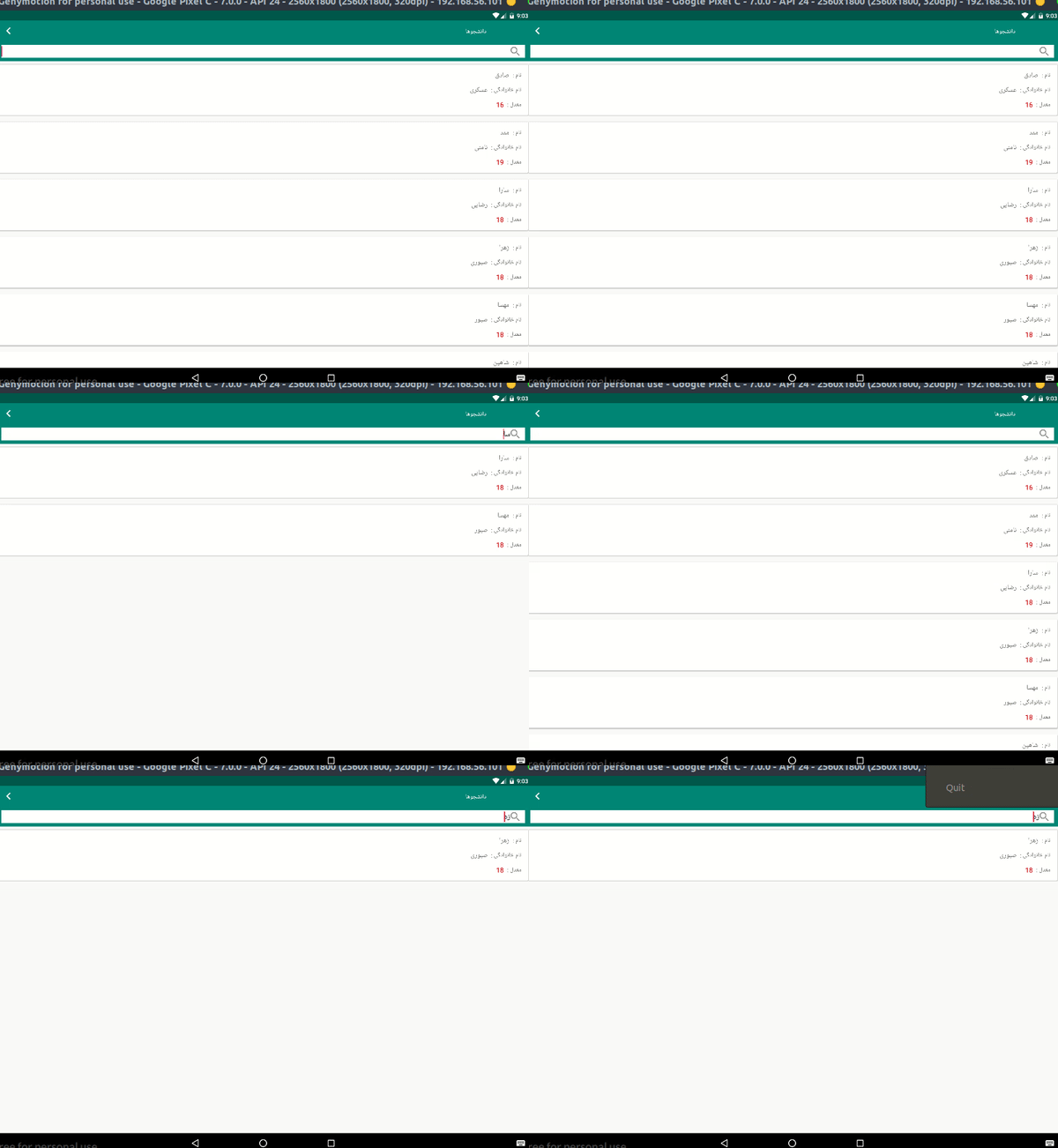
بقیه متدها و دستورات هم که با کامنت مشخص شده.حالا برنامه رو اجرا کنیم شاهد این هستیم که برنامه بی عیب کار میکنه و میتونید لیستی که از سرور میاد رو ببینید و سرچ بزنید و نتیجه سرچ رو بصورت آنی ببینید.
دستورات سمت سرور
اگر مایل هستید که بدونید سمت سرور چه اتفاقی داره میوفته و این اطلاعات با چه دستوراتی از سرور برمیگرده
دستورات سرور بدین صورت هست
<?php
$con = mysqli_connect("localhost", "", "", "test");

// Check connection
if (mysqli_connect_errno()) {
echo "Failed to connect to MySQL: " . mysqli_connect_error();
}

mysqli_set_charset($con,"utf8");

$sql = "SELECT * FROM tbl_students";
$result = $con->query($sql);

if ($result->num_rows > 0) {
$stus = array();
while ($row = $result->fetch_assoc()) {
$arr = array(
"ID"=>$row['ID'],
"Name"=>$row['Name'],
"Family"=>$row['Family'],
"Age"=>$row['Age'],
"Average"=>$row['Average'],
"City"=>$row['City']
);

array_push($stus, $arr);
}

echo json_encode($stus);
} else {
echo "0 results";
}
$con->close();
خروجی جستجو پیشرفته در ریسایکلر ویو RecyclerView
نتیجه نهایی این آموزش بصورت زیر خواهد بود ، بر روی تصویر زیر کلیک کنید:
امیدوارم این آموزش برای شما مفید بوده باشه…


